
Pixxel
Documentation
Developer Guide
Pixxel API
Overview
About PixxelPixxel's ConstellationPixxel's Tech Demonstrators

Getting Started
AuroraQuick Start

Tasking
Tasking Basics

Know Your Customer (KYC)Know Your Business (KYB)Navigation to Order DeskInitiating a New Tasking Order

Available BandsetsCustom Bandsets
Ordering and Cart
Archive OrderingWorking with CartOrder Listing, Status and Details
Catalog and Delivery
My CatalogExport ImageryNaming Convention
Explore Images & Create AOIs
ExploreSearch Location and Draw/Upload AOISearch and Select ImagesSatellite DataAOI Info and Scenes
Analytics Tools

Spectral SignatureSplit Compare
Analytical Models
Insights in Aurora (AOI Screen)Model Marketplace

Workflows
Workflow and Jobs
Aurora Intelligence
OverviewImage Search
Legal Documents
Third Party Satellite Provider Documents
Pixxel
Documentation
Developer Guide
Pixxel API
Overview
About PixxelPixxel's ConstellationPixxel's Tech Demonstrators

Getting Started
AuroraQuick Start

Tasking
Tasking Basics

Know Your Customer (KYC)Know Your Business (KYB)Navigation to Order DeskInitiating a New Tasking Order

Available BandsetsCustom Bandsets
Ordering and Cart
Archive OrderingWorking with CartOrder Listing, Status and Details
Catalog and Delivery
My CatalogExport ImageryNaming Convention
Explore Images & Create AOIs
ExploreSearch Location and Draw/Upload AOISearch and Select ImagesSatellite DataAOI Info and Scenes
Analytics Tools

Spectral SignatureSplit Compare
Analytical Models
Insights in Aurora (AOI Screen)Model Marketplace

Workflows
Workflow and Jobs
Aurora Intelligence
OverviewImage Search
Legal Documents
Third Party Satellite Provider Documents
  1. Tasking
  2. Access the Order Desk
  3. Know Your Customer (KYC)

Know Your Customer (KYC)

Before you can access the Order Desk, you must complete the Know Your Customer (KYC) process. This ensures that your account is verified and ready for all platform functionalities.

Note: KYC can be done by Organization Owners only.

If you are a business, please go to the Know Your Business page.

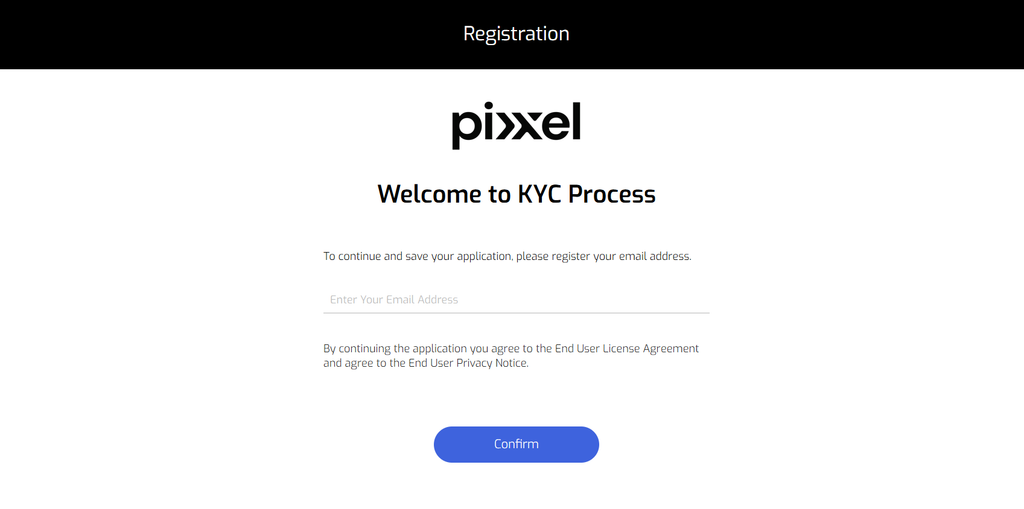
1. Start by entering your personal email
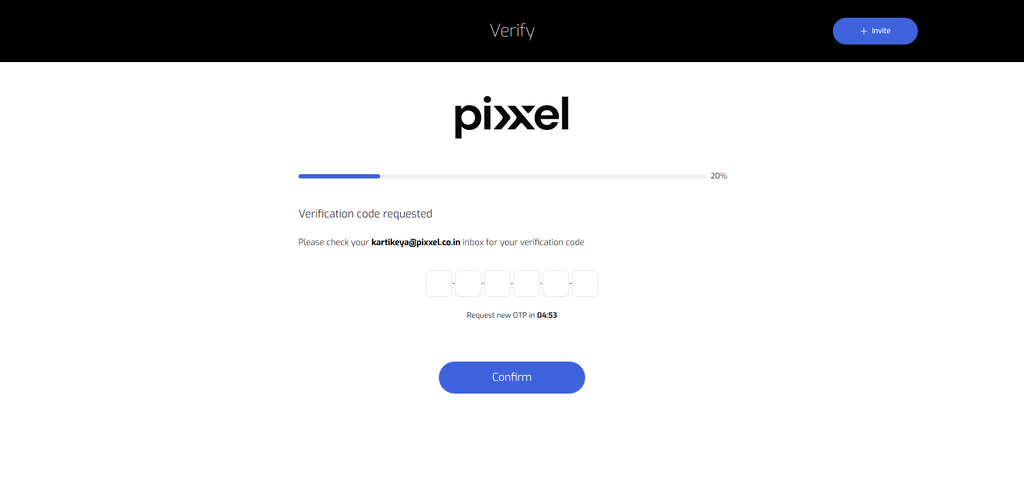
2. Enter the otp sent to your personal email for verification
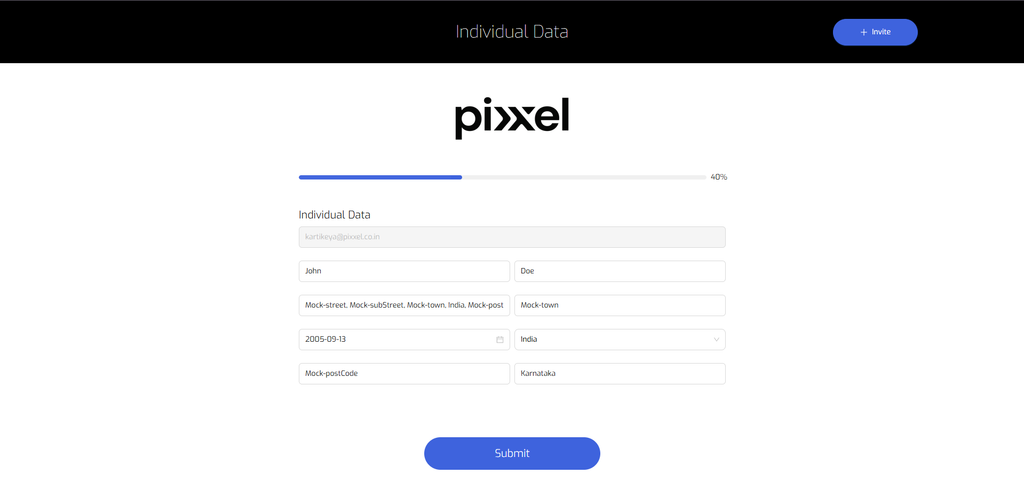
3. Enter your individual data like name, address etc.
4. Start the identity verification process
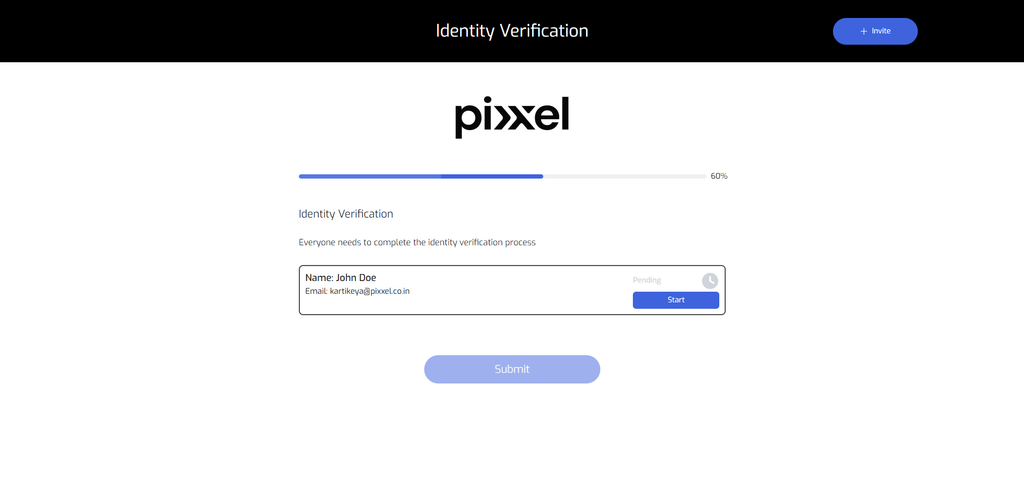
The identity verification process involves three important steps that are:

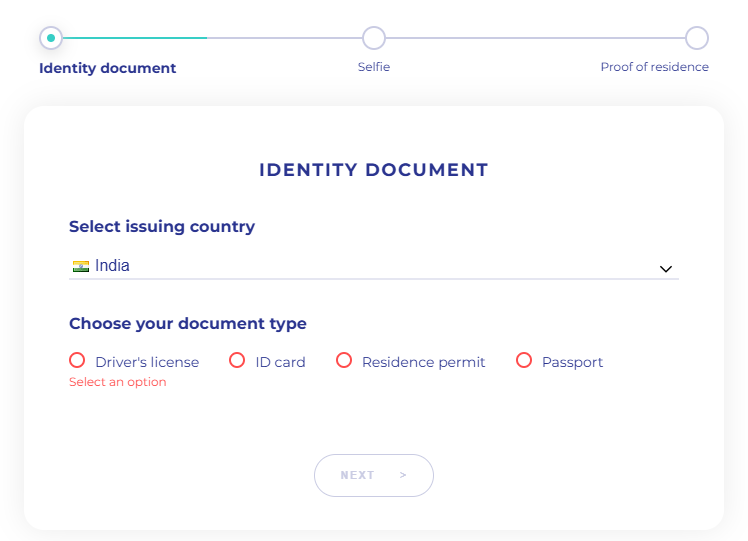
  • Identity document:

    Please select the country that issued your document. You will also be prompted to choose the type of identity document you wish to upload. Ensure that both the front and back sides of the document are submitted. The photos should be well-lit and clear, with all corners of the document fully visible.
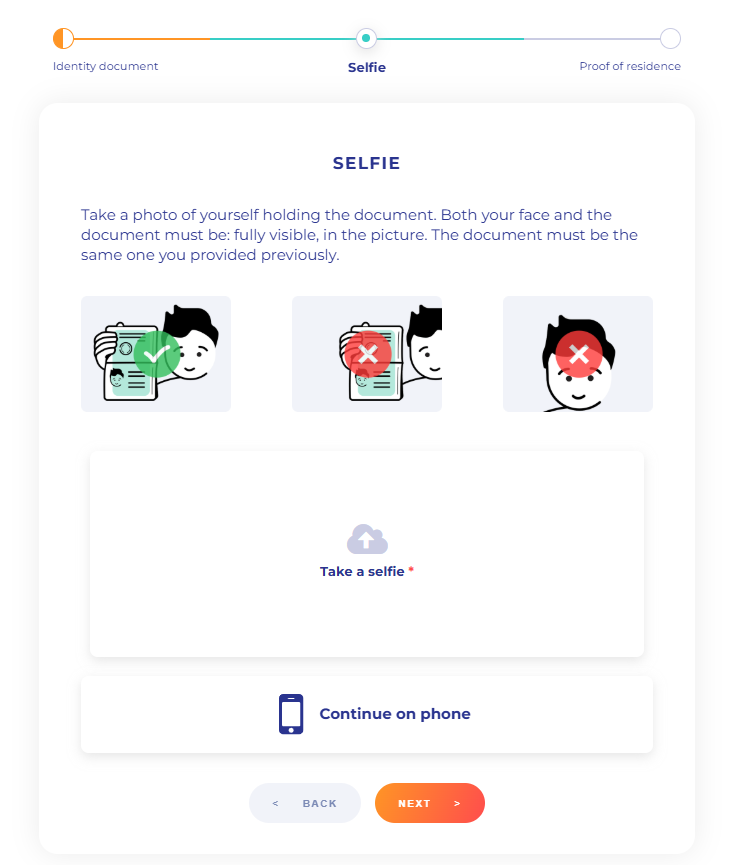
  • Selfie

Please upload a document that serves as proof of residence. Acceptable documents include bank statements, utility bills, tax returns, and similar official records.
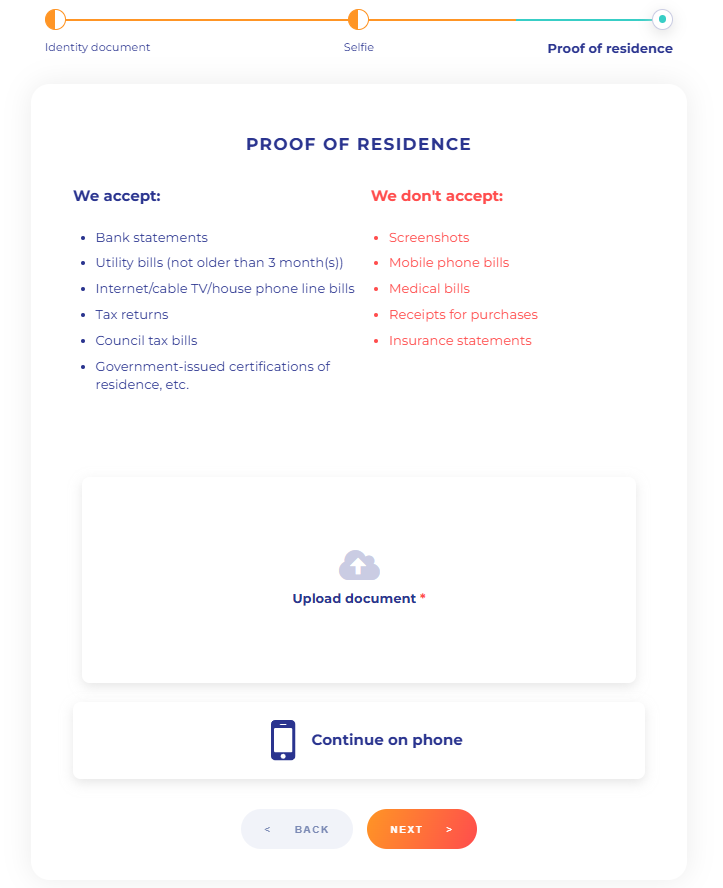
  • Proof of Residence

    Upload a document which has proof of your residence. You can upload bank statements, bills, tax returns, etc.
After uploading all required documents, please wait for the verification process to be completed. The organization owner will recieve a notification KYC Status update: under review which means that the information and documents submitted are under review.

Once verified, your account will be fully enabled for all platform functionalities. The organization owner will recieve the following notification KYC Verified: Access to order desk which means that KYC verification is complete and the organization has full access to the Order Desk for tasking and archives.

Tasking BasicsKnow Your Business (KYB)
On this page
1. Start by entering your personal email2. Enter the otp sent to your personal email for verification3. Enter your individual data like name, address etc.4. Start the identity verification process