
Pixxel
Documentation
Developer Guide
Pixxel API
Overview
About PixxelPixxel's ConstellationPixxel's Tech Demonstrators

Getting Started
AuroraQuick Start

Pricing OverviewPlansTokens

Billing DetailsBilling CyclesUpgrading and Downgrading
Payment MethodsRefunds
Tasking
Tasking Basics

Available BandsetsCustom Bandsets
Ordering and Cart
Archive OrderingWorking with CartOrder Listing, Status and Details
Catalog and Delivery
My CatalogExport ImageryNaming Convention
Explore Images & Create AOIs
ExploreSearch Location and Draw/Upload AOISearch and Select ImagesSatellite DataAOI Info and Scenes
Analytics Tools

Spectral SignatureSplit Compare
Analytical Models
Insights in Aurora (AOI Screen)Model Marketplace

Workflows
Workflow and Jobs
Aurora Intelligence
OverviewImage Search
Legal Documents
Third Party Satellite Provider Documents
Pixxel
Documentation
Developer Guide
Pixxel API
Overview
About PixxelPixxel's ConstellationPixxel's Tech Demonstrators

Getting Started
AuroraQuick Start

Pricing OverviewPlansTokens

Billing DetailsBilling CyclesUpgrading and Downgrading
Payment MethodsRefunds
Tasking
Tasking Basics

Available BandsetsCustom Bandsets
Ordering and Cart
Archive OrderingWorking with CartOrder Listing, Status and Details
Catalog and Delivery
My CatalogExport ImageryNaming Convention
Explore Images & Create AOIs
ExploreSearch Location and Draw/Upload AOISearch and Select ImagesSatellite DataAOI Info and Scenes
Analytics Tools

Spectral SignatureSplit Compare
Analytical Models
Insights in Aurora (AOI Screen)Model Marketplace

Workflows
Workflow and Jobs
Aurora Intelligence
OverviewImage Search
Legal Documents
Third Party Satellite Provider Documents
  1. Getting Started
  2. Pricing and Refund
  3. Billing and Subscriptions
  4. Billing Details

Billing Details

The Billing Details section allows users to input their payment information, ensuring accurate invoicing and seamless transactions. Our system is integrated with Stripe to securely process billing details. Follow the steps below to complete the billing information:
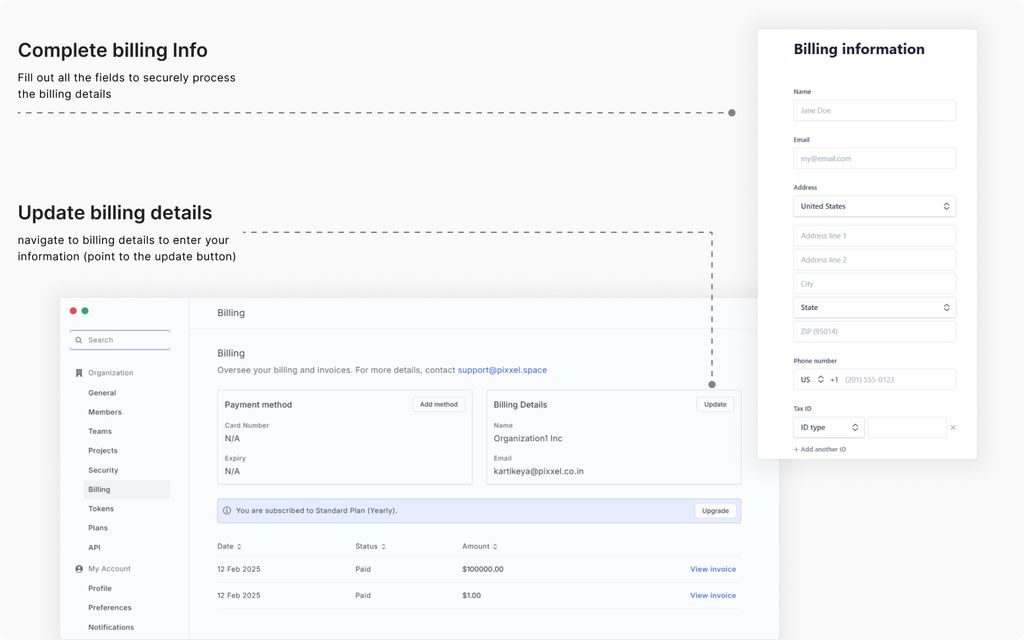
Steps to enter Billing Details:

  • Enter Workspace Name:

    Provide the legal name of your workspace in the Name field. This name will be used for invoices and billing records.

  • Provide an Email Address:

    Enter a valid email address where billing-related communications, such as invoices and payment confirmations, will be sent.

  • Enter Address Details:

    Select the country from the dropdown menu, then fill in the street address, including Address Line 1 and Address Line 2 if applicable. Enter the city name, provide the postal or ZIP code, and choose the appropriate state or region from the dropdown list.

  • Add Phone Number:

    Select the country code from the dropdown menu and enter the phone number associated with the billing account

  • Enter Tax Identification:

    Select the type of Tax ID from the dropdown menu (e.g., VAT, GST, or any other applicable tax ID) and enter the corresponding Tax Identification number. If additional Tax IDs are required, click on Add another ID to include multiple tax identifiers.

    Adding your Tax ID ensures that your invoices include all required business details, making them compliant with local tax regulations. This helps your organization with accounting, enables potential tax credits or deductions, and simplifies the reimbursement process by providing finance teams with the necessary documentation to verify business-related expenses.

All entered data is securely processed through Stripe, ensuring compliance with payment and data protection standards.

Archive ImagesBilling Cycles
On this page
Steps to enter Billing Details: