
Area of Interest
Imagine you need a satellite image of a specific region—this could be your farm, a city block, or any area that matters to your work. In our Tasking Dashboard, this is called your Area of Interest (AOI). But don't worry if the term sounds technical; we’ve made it simple and intuitive for everyone!
This page guides you through specifying the Area of Interest (AOI) for your tasking orders. You can create your AOI using drawing tools or by uploading supported file formats.
What is an AOI?
Your AOI is simply the part of the map you want to capture. It can be a single shape or even several shapes that together cover the area you care about. This flexibility means you can:
- Draw a single shape: Perfect for a continuous area, like a single farm.
- Draw multiple shapes: Great for when your area is split up or not one continuous piece—like several small plots spread out over a larger region.
Step-by-Step Guide: Using the UI to Define Your AOI
1. Choose Your Method
- Drawing on the Map:
- Drawing Tools:
Use interactive tools to draw a bounding box, circle, or custom-shaped polygon directly on the map. - Point & Radius:
Specify a point (latitude, longitude) and define a radius to create a circular AOI.
- Drawing Tools:
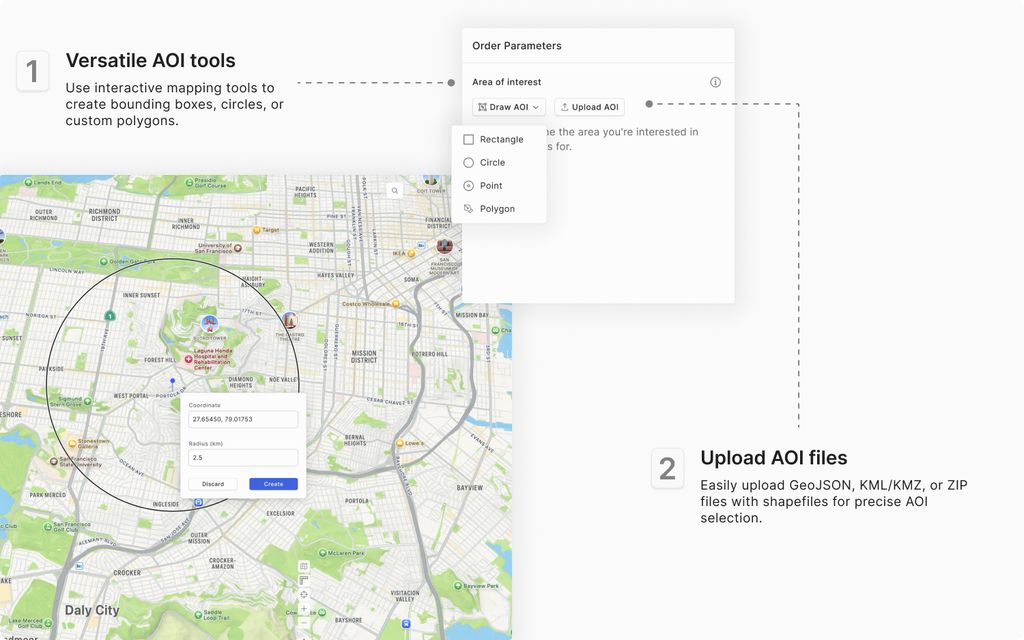
- Uploading Files:
- Supported Formats:
You can upload files in the following formats:- GeoJSON
- KML/KMZ
- ZIP archive containing shapefiles
- Usage Tip:
Ensure your uploaded file follows standard geospatial formatting for proper rendering on the map.
- Supported Formats:
2. Validate Your AOI
-
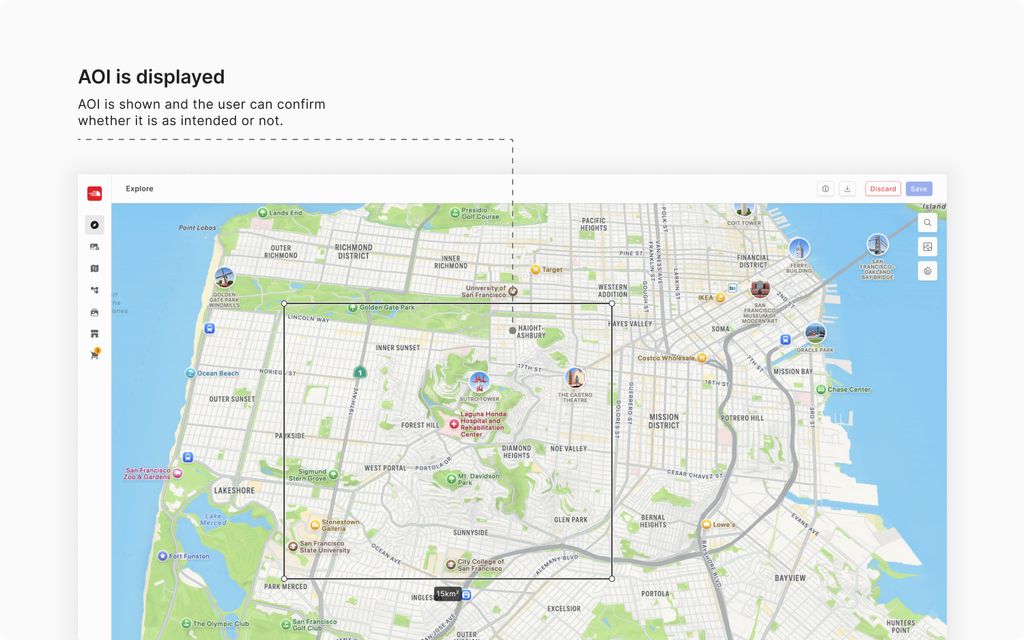
Visual Confirmation:
- After drawing or uploading, the AOI will be displayed on the map.
- Check that the shape covers the area you intend to image.
-
Automatic Validations:
- Minimum Area: Even if your drawn or uploaded AOI is smaller than 100 sq km, you will be billed for a minimum area of 100 sq km.
- Maximum Size: If your AOI exceeds 5000 sq km, you’ll receive an error prompting you to adjust the area.
- Multi-Polygon Check: For AOIs with multiple polygons, the system verifies that the distance between the closest boundaries does not exceed 200 km.
- Point of Interest: When specifying an AOI as a point with a radius, there’s no minimum radius. However, the maximum allowed radius is 39.85 km (derived from the 5000 sq km maximum criterion).
3. Adjust and Confirm
- If the system detects any issues (e.g., non-continuous polygons or a radius exceeding 39.85 km), it will show an error message.
- Make necessary adjustments using the drawing tools or by re-uploading a corrected file.
We’ve designed this process to be as user-friendly as possible, so whether you’re familiar with mapping terms or not, you can easily define the area that matters to you.