Pixxel
Documentation
Developer Guide
Pixxel API
Overview
About PixxelPixxel's ConstellationPixxel's Tech Demonstrators

Getting Started
AuroraQuick Start

MembersProjectsAllowed Email Domains

Tasking
Tasking Basics

Available BandsetsCustom Bandsets
Ordering and Cart
Archive OrderingWorking with CartOrder Listing, Status and Details
Catalog and Delivery
My CatalogExport ImageryNaming Convention
Explore Images & Create AOIs
ExploreSearch Location and Draw/Upload AOISearch and Select ImagesSatellite DataAOI Info and Scenes
Analytics Tools

Spectral SignatureSplit Compare
Analytical Models
Insights in Aurora (AOI Screen)Model Marketplace

Workflows
Workflow and Jobs
Aurora Intelligence
OverviewImage Search
Legal Documents
Third Party Satellite Provider Documents
Pixxel
Documentation
Developer Guide
Pixxel API
Overview
About PixxelPixxel's ConstellationPixxel's Tech Demonstrators

Getting Started
AuroraQuick Start

MembersProjectsAllowed Email Domains

Tasking
Tasking Basics

Available BandsetsCustom Bandsets
Ordering and Cart
Archive OrderingWorking with CartOrder Listing, Status and Details
Catalog and Delivery
My CatalogExport ImageryNaming Convention
Explore Images & Create AOIs
ExploreSearch Location and Draw/Upload AOISearch and Select ImagesSatellite DataAOI Info and Scenes
Analytics Tools

Spectral SignatureSplit Compare
Analytical Models
Insights in Aurora (AOI Screen)Model Marketplace

Workflows
Workflow and Jobs
Aurora Intelligence
OverviewImage Search
Legal Documents
Third Party Satellite Provider Documents
  1. Getting Started
  2. Collaboration
  3. Allowed Email Domains

Allowed Email Domains

The Allowed Email Domains feature enables workspace owners to control access to their workspace by specifying which email domains are permitted for sign-ups.
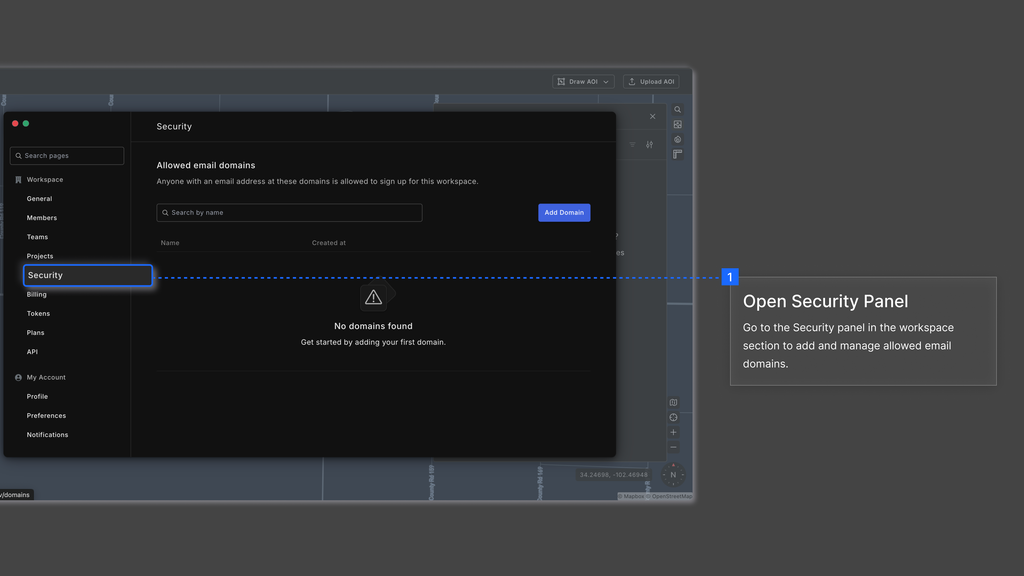
How It Works

  • Workspace owners can add one or more email domains to allow users with those domains to join the workspace automatically.
  • If a user tries to sign up with an email that does not belong to an approved domain, they will be restricted from joining the workspace.
  • This feature helps ensure that only authorized users can access the workspace, enhancing both security and administrative control.

Managing Allowed Email Domains

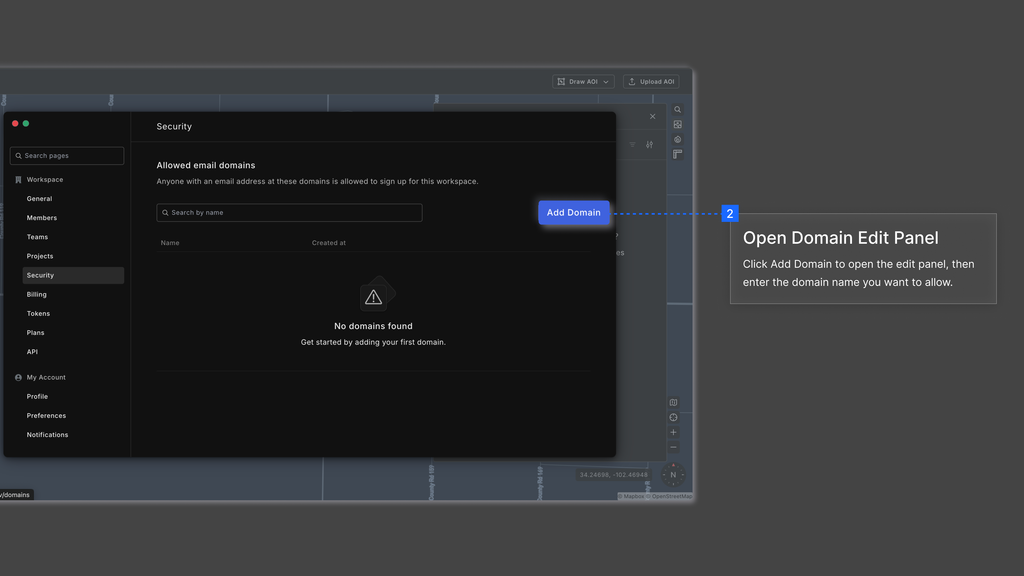
  1. Click the "Add Domain" button.
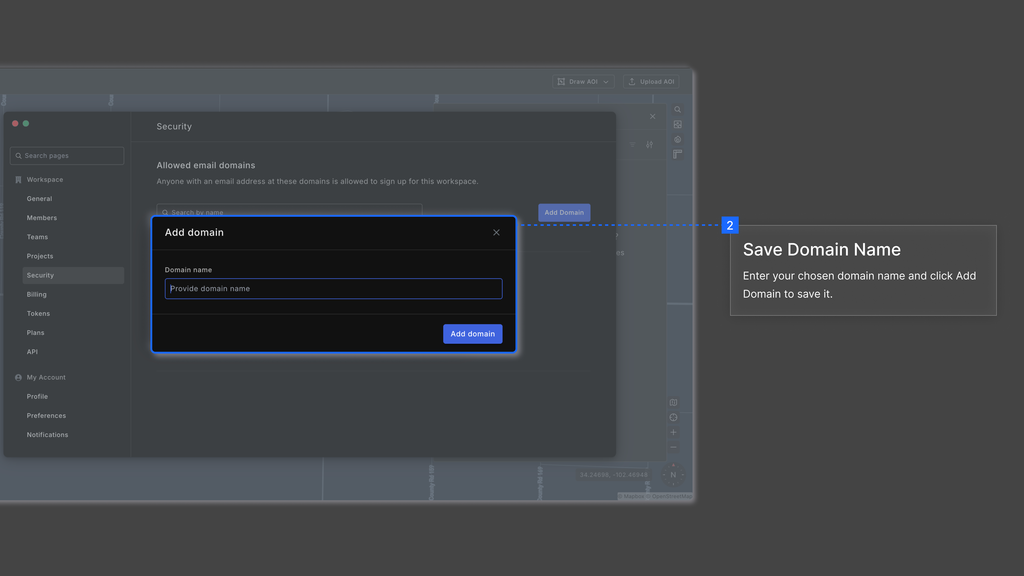
  1. Enter the domain name (e.g., company.com, company.co.in, etc).
  2. Save the changes.
  1. The newly added domain will appear in the list, allowing users with matching email addresses to sign up.

Note: If no domains are added, no one can join the workspace through domain-based sign-ups.

ProjectsNotifications
On this page
How It WorksManaging Allowed Email Domains