Bands
Composite Bands
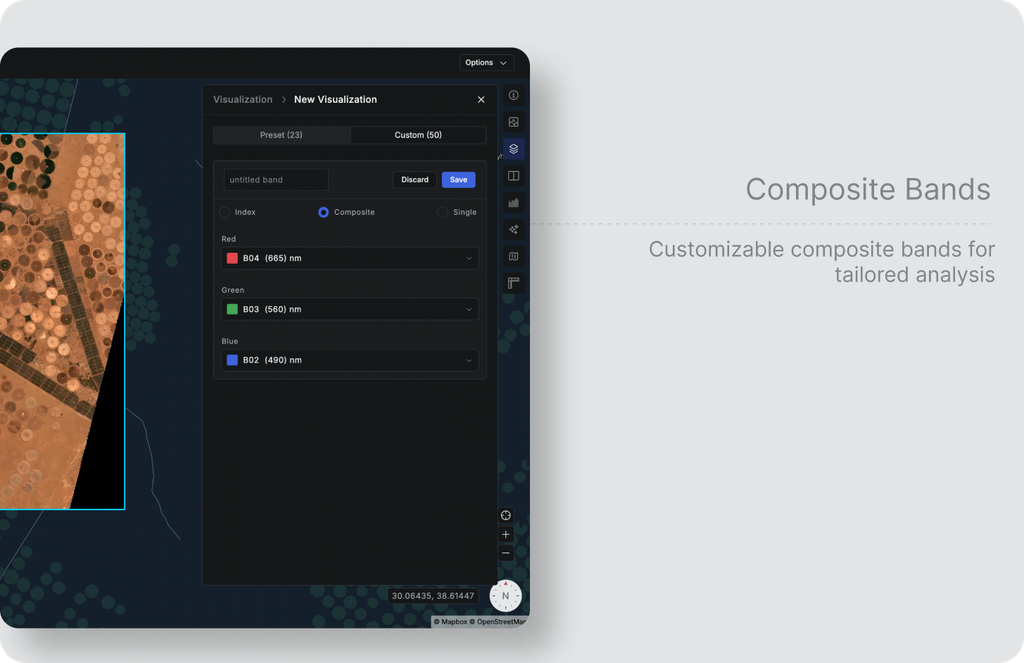
In Aurora, composite bands play a crucial role in image analysis. True composite bands traditionally combine B04, B03, and B02 bands to form an RGB composite, resulting in imagery that closely mirrors natural colors as perceived by the human eye. However, you have the flexibility to create false composite bands by altering this standard combination.
For instance, replacing the B04 (red) band with B06 in the RGB set modifies the composite's visual output, unveiling different aspects of the image. A notable application of false composites is the Near-Infrared Composite, which employs a [B02, B03, B04] combination in RGB. This approach uniquely highlights vegetation in red rather than its typical green, providing valuable insights into vegetation health and distribution. Such customizations in composite bands allow for tailored analysis based on specific research or monitoring needs.
Single Bands
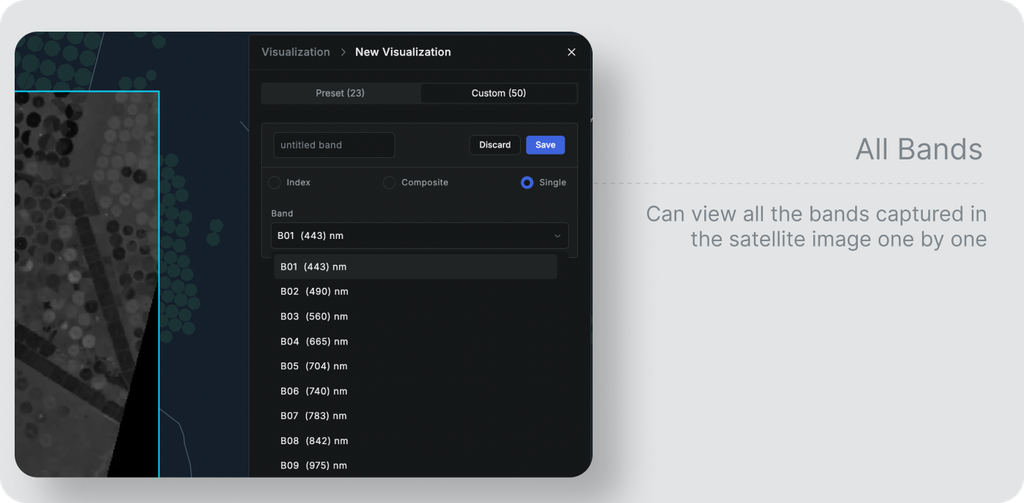
Apart from indices and setting composite bands, you can view all the bands captured in the satellite image one by one. Each band visualization provides the spatial distribution of spectral information in the image.
Saving Layers
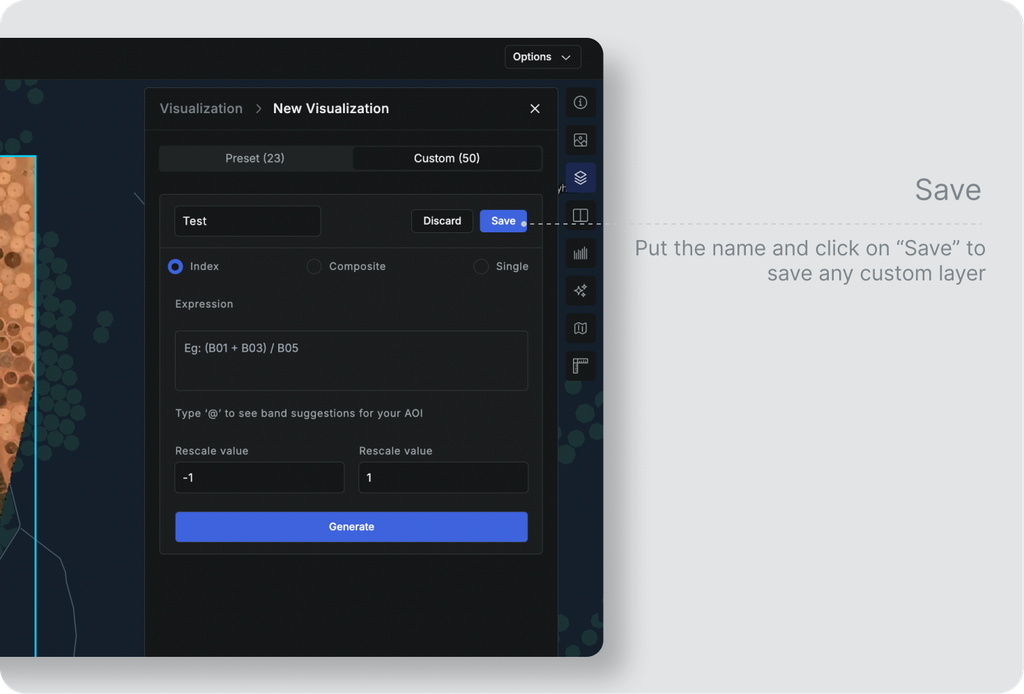
As discussed till now, all the bands, composite bands, and indices, whether preset or custom, are nothing other than a layer or combination of layers forming another layer. These layers can be used as a source for further analysis.
Preset indices: When you create any preset index, it is automatically saved and can be accessed in the Visualization tab only
Custom Index/bands: You can save your custom index/bands while creating the index/bands by providing that layer with a name of your choice. These saved layers can be found under the Custom tab in Visualizations.